
Our Sonoff relay (eWelink) Devices are very easy to set up and add to Google Home Assistant. To turn the devices on and off, we all know the common phrases such as turn on/off the <device name>.
Regardless of device types, whether it is a plug, switch, or a motor, you can say this phrase to Alexa or Google Assistant: turn on/off the <device name>.
Want to ask your voice assistant to perform more complex tasks?
Here we prepare a “hidden menu” for you.
*We will point out the specific phrases that only available on Alexa or Google Assistant. Other than that, commands below generally work for both Alexa and Google Assistant.
1. Confirm sensor status
It’s essential for us to confirm the current temperature (for taking care of your garden, or other scenarios) or know the door/windows status to ensure your house security.
Zigbee temperature sensor
- What’s the temperature of my <device name>?
e.g. what’s the temperature of my warm house?
Zigbee door sensor
- Is my <device name> closed?
e.g. Is my front door closed?
2. Change lights color
For smart light bulbs, changing color is the basic feature. By saying the commands below, you can change the lighting color instantly to fit into different scenarios, moods, etc.
- Set the <device name> to <color>e.g. set the light to blue.
You can even increase or decrease the color temperature by saying certain temperature mode to get more color choices.
- Set the <device> <temperature mode>
e.g. set the light to soft.
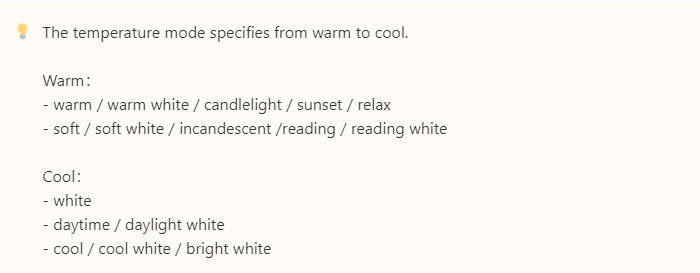
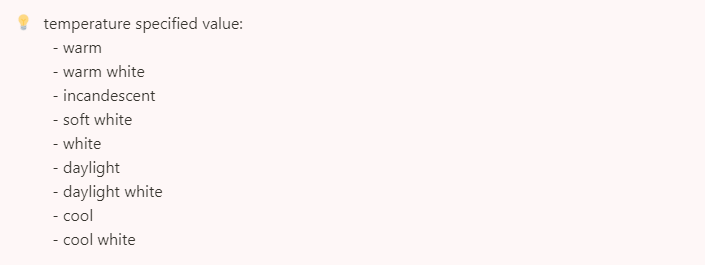
Open the eWeLink app and take a look at the device control page, if there are more color modes available, you can give the same voice commands:
- Set the <device name> to <temperature specified value>
- Change the <device name> to shade of <temperature specified value>
- Make the <device name> <temperature specified value>
e.g. set the room light to soft white.
*Commands below only work with Alexa.
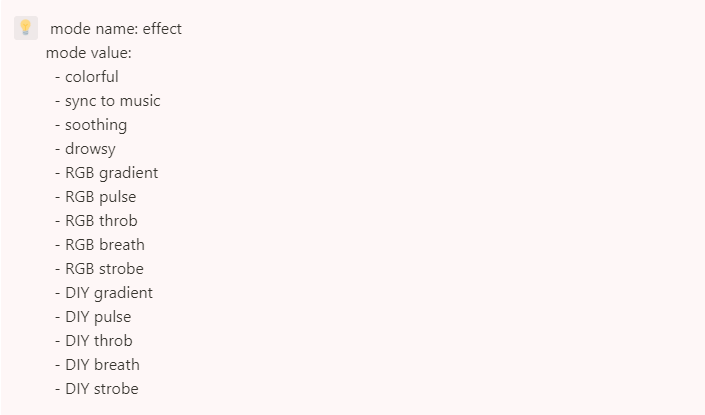
There are two types of light modes: effect and scene.
Effect Mode:
- Set the <mode name> on <device name> to <mode value>
- Set the <device name> to <mode value> <mode name>
e.g. set the bedroom light to DIY pulse effect.
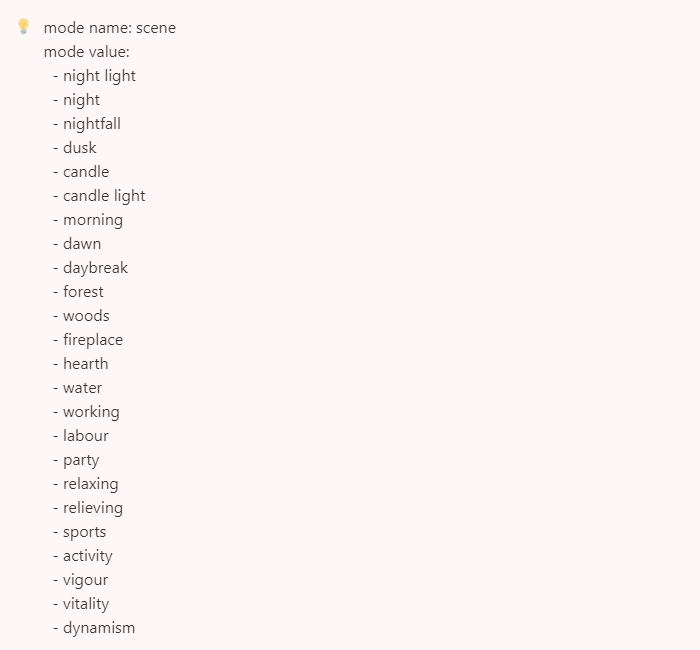
Scene Mode:
- Set the <mode name> on <device name> to <mode value>
- Set the <device name> to <mode value> <mode name>
e.g. set the living room light to the party scene.
3. Change lights brightness
- Set the <device name> to <brightness percent value>
- Dim/brighten the <device name> by <brightness percent>
e.g. dim the light by 20%.
*Note: you can set the Kelvin value on Google Assistant.
e.g. set the light to 2000 Kelvin.
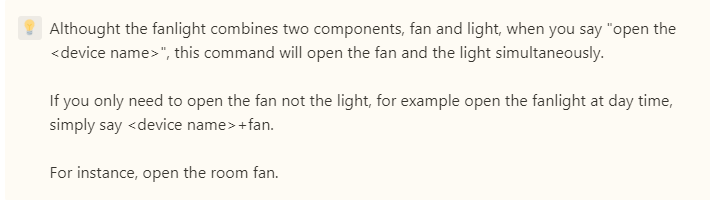
4. Adjust the fanlight (fan +light)
Despite turning on/off the fanlight, you can adjust the fan speed to different levels (level 1 to 3).
- Set the <device name> speed to <fan level>
e.g. set the fanlight speed to 2.
What‘s more, level 1 to 3 support using synonym words.
level 1: Low, Minimum
level 2: Medium, Mid
level 3: Maximum, Max, High
e.g. set the fanlight speed to mid.
5. Make full use of your humidifier
The humidifier can be controlled separately. You can choose to switch only the light on, or just change the mist level.
- Turn on/off <one of the device component name> on the <device name>
e.g. turn on/off the mist/light on the humidifier.
To change the mist level, you could say:
- Set the <device name> mist level to <mist level>
#mist level: small, large
e.g. set the room mist level to large.
The light of humidifier shares the same commands as normal light bulbs, lamps, or light strips. Check the above section “Change lights color”.
6. Control the travel of roller shutter
Instead of saying open or close the roller shutter, you could decide the open/close percentage.
- Set the <device name> to <percent>
e.g. set the door to 30%.
When the door is fully opened, and you want the door close a bit but not entirely, set the travel schedule by saying:
- Increase/decrease the <device name> by <percent>
e.g. decrease the door by 50%
If you change your mind and want to stop the travel, then say:
- Pause the <device name>
e.g. pause the door.
7. Schedule your house temperature
- Set the <device name> to <temperature value> for <schedule time>
e.g. set the living room to 20ºC for three hours.
When you feel the room is too hot or too cold, you could say:
- Make the <device name><warmer>
e.g. make the living room warmer.
Some specific modes are also available:
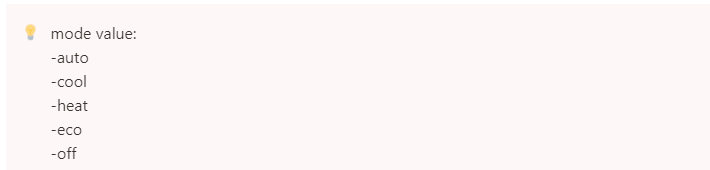
- Set the <device name> thermostat to <mode>
e.g. set the living room thermostat to auto.
For more commands and help check this eWelink support page
